A
Numbering & ordering
Photo by photo, in ascending order.
You assign the numbers in exactly the order you have in mind.
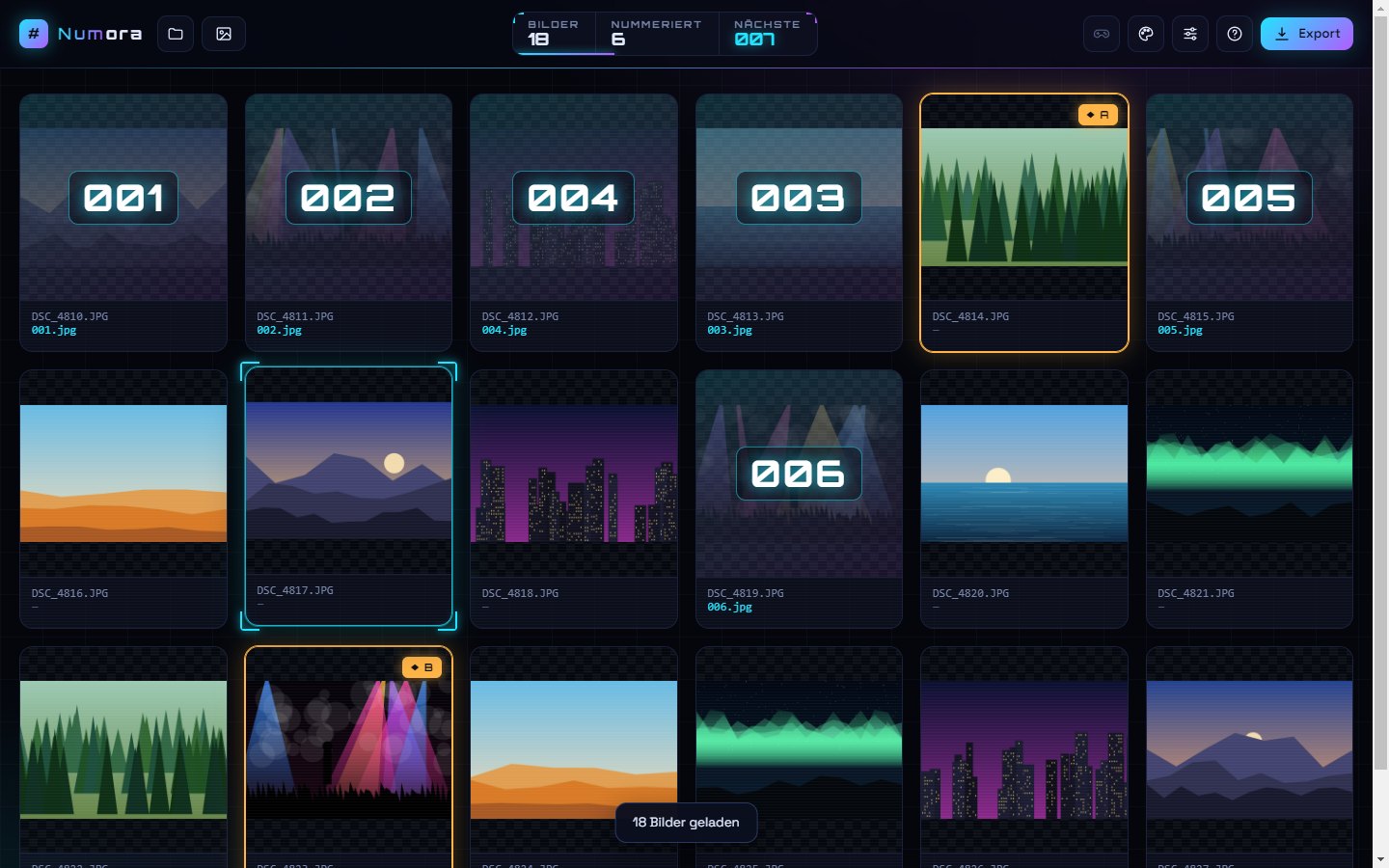
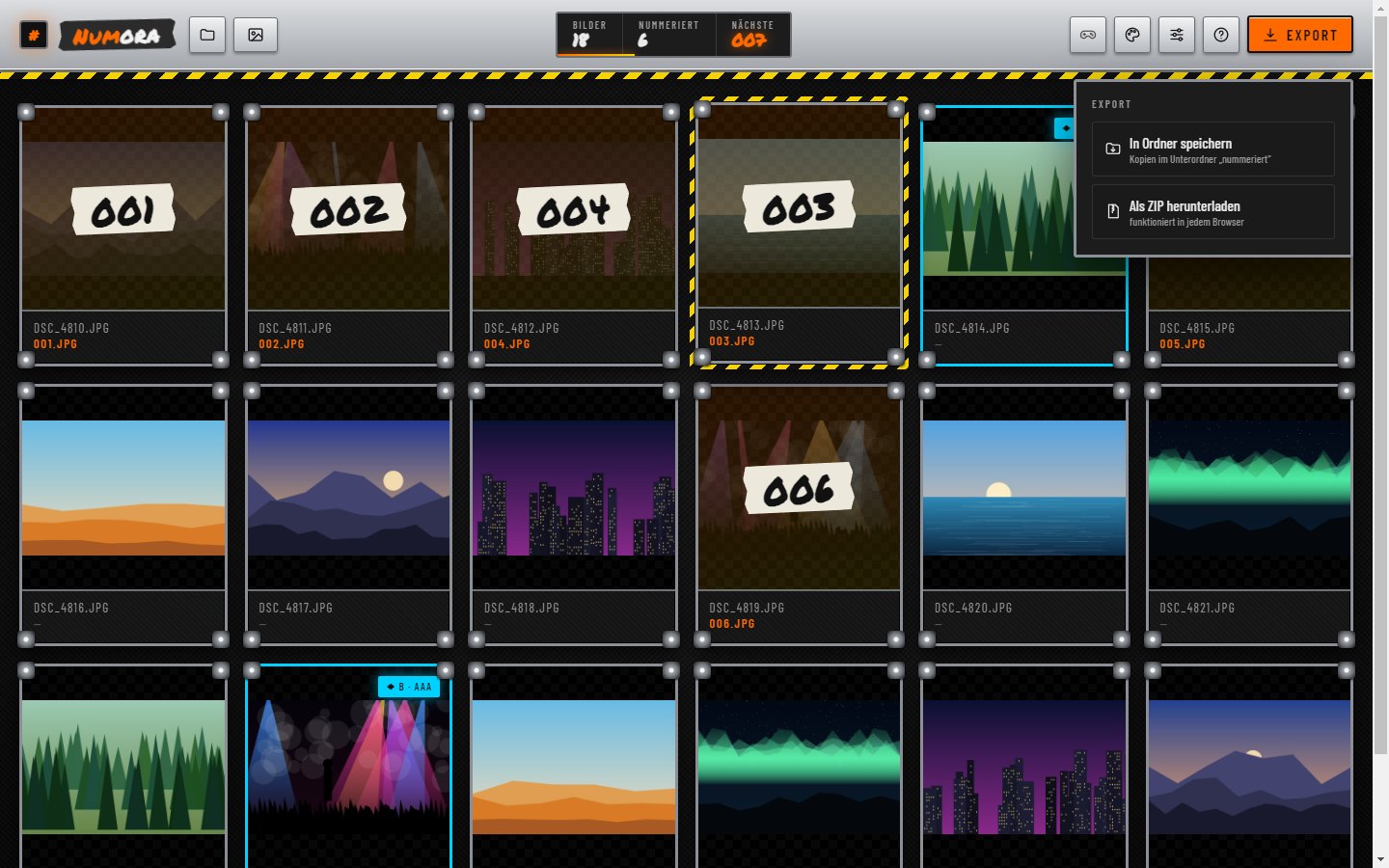
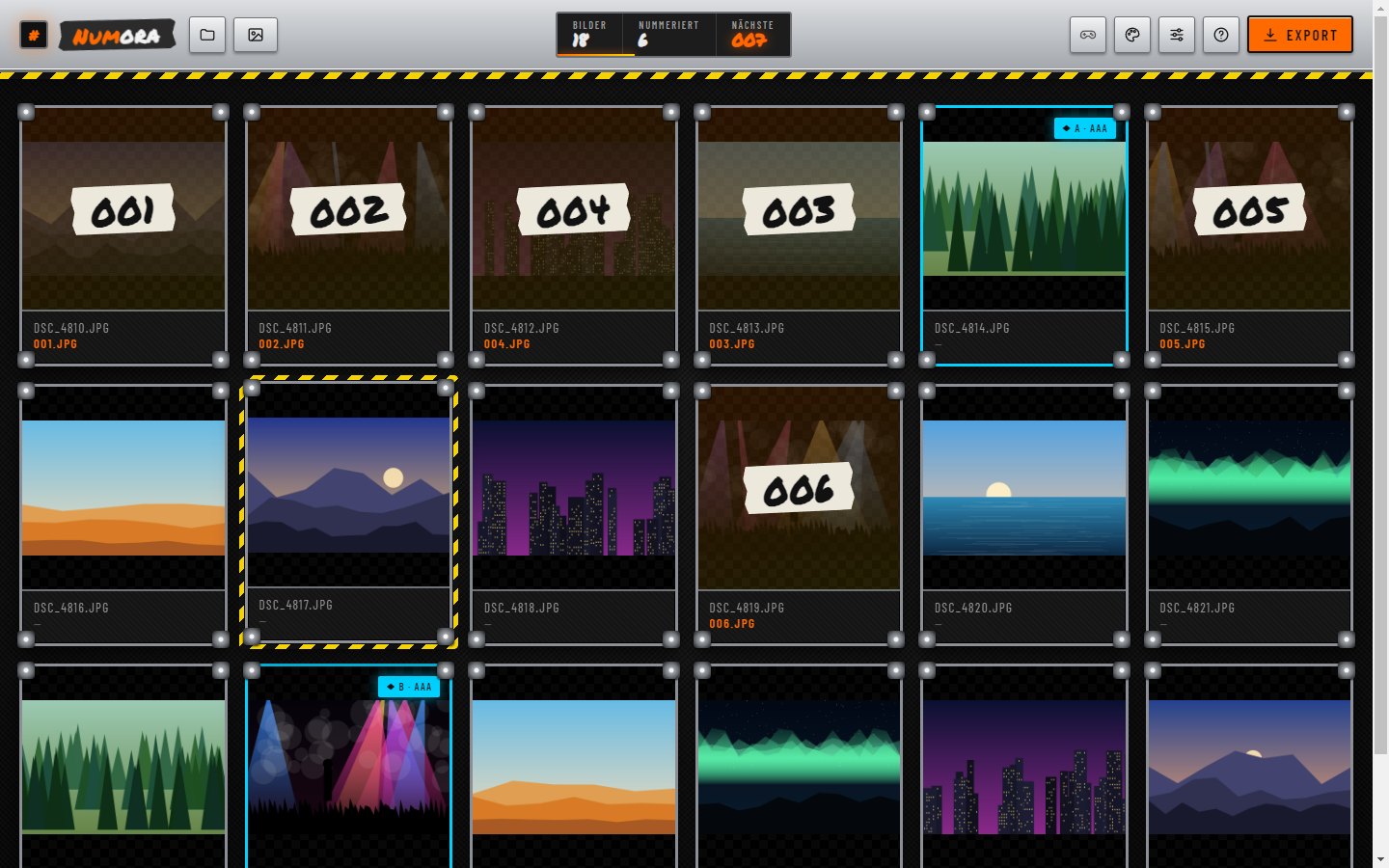
- Load your way: drag & drop, file picker or “Open folder” – with natural sorting by file name.
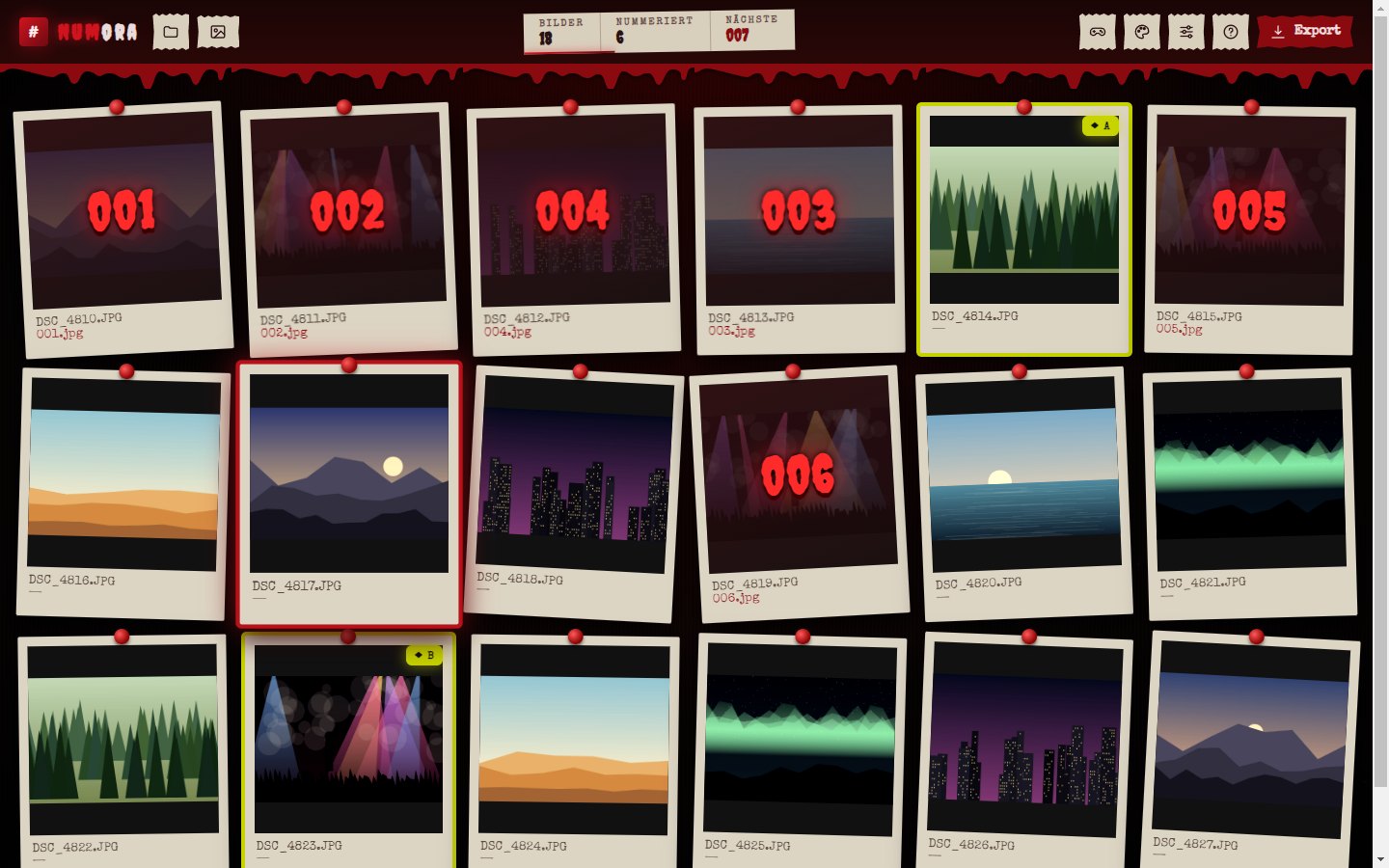
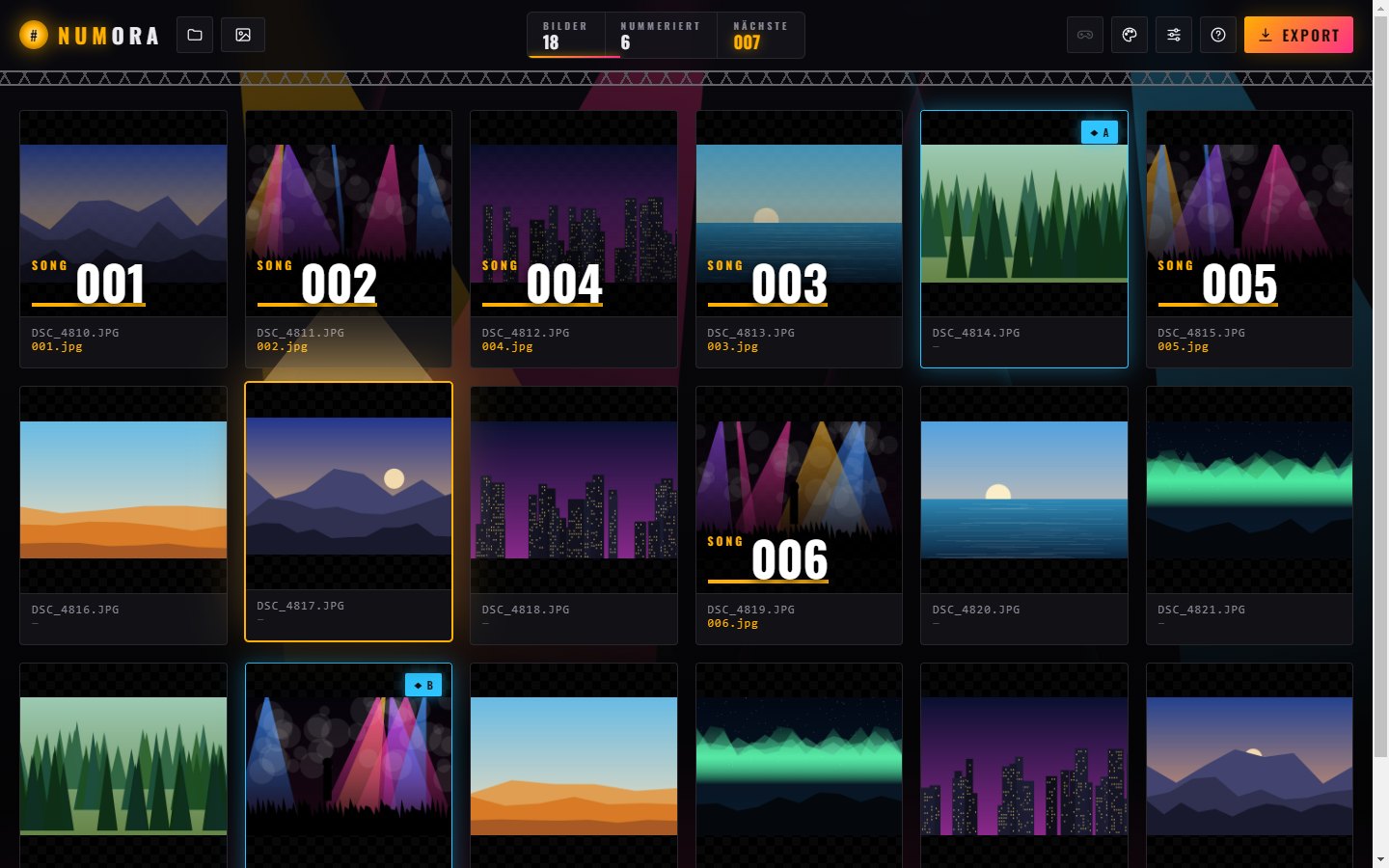
- Large thumbnails in the grid, size adjustable with a slider.
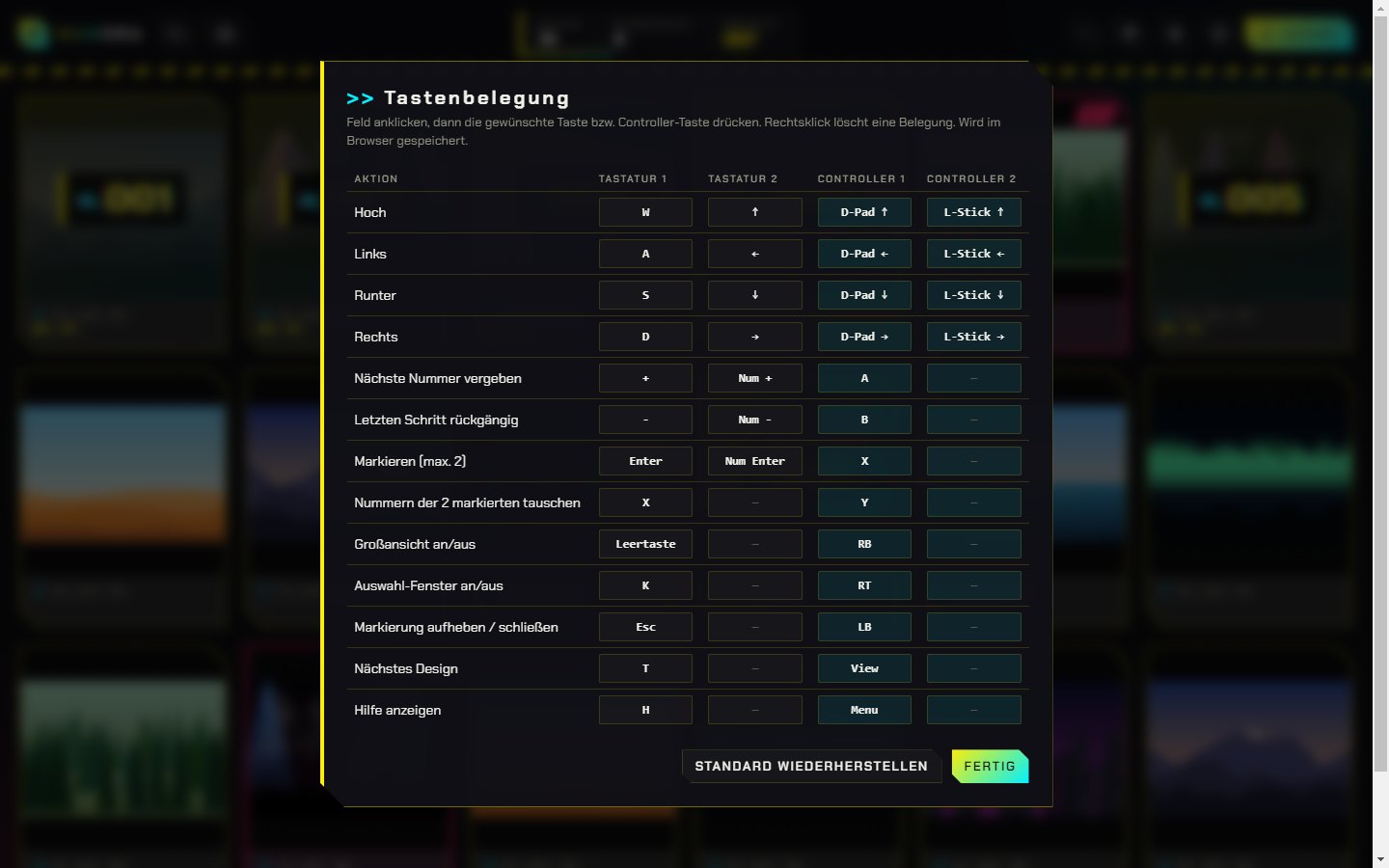
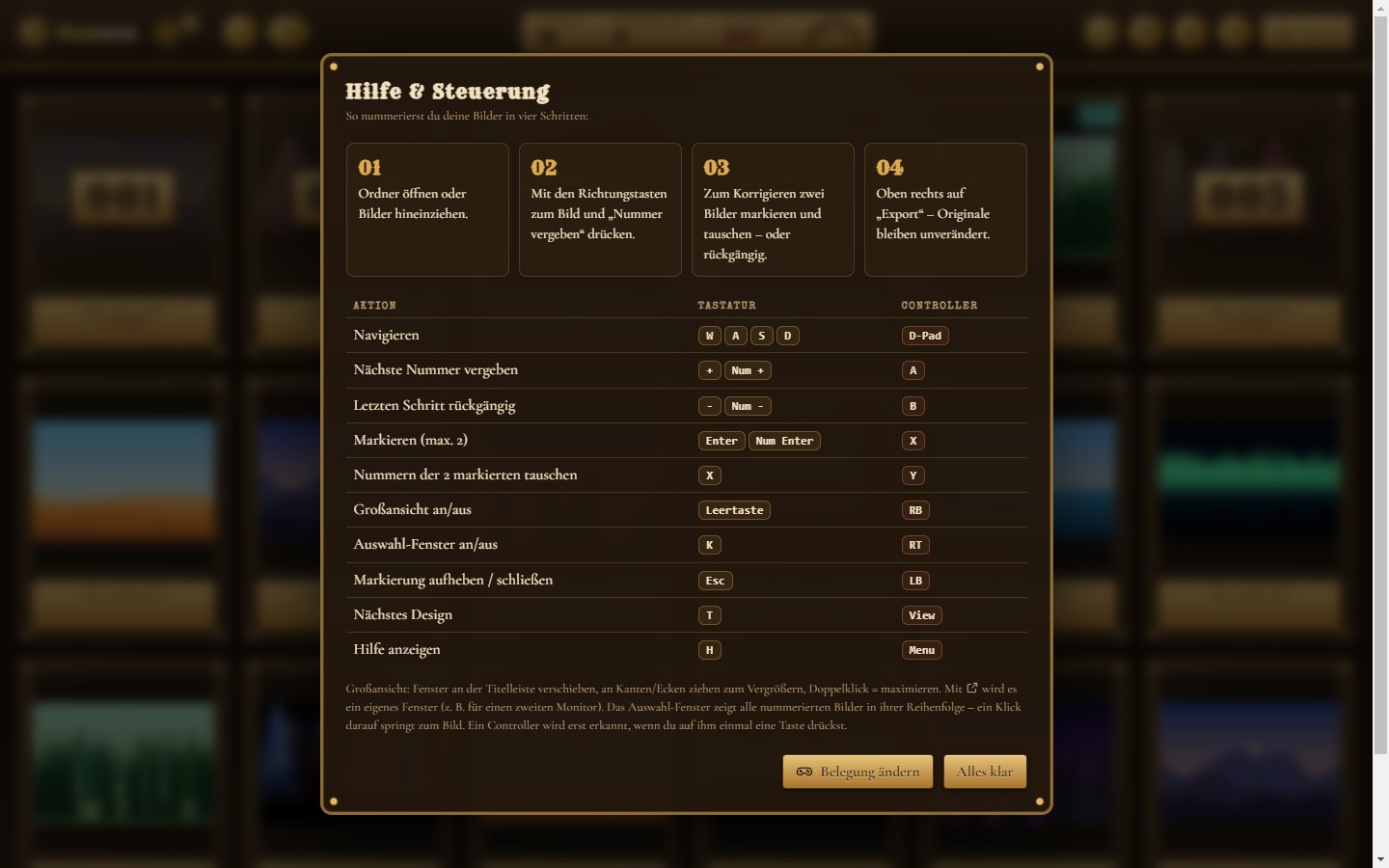
- W A S D or arrow keys to navigate, + assigns the next number.
- − undoes – a number or a swap, as often as you like.
- A/B swap: mark two photos with Enter, swap their numbers with X.
- No auto-jump: after numbering, the selection stays put – jumping ahead can be switched on if you like.
- Live preview of the new file name under every photo.
DSC_4810.JPG → Wedding_001.jpg
B
Windows
A large view that follows you.
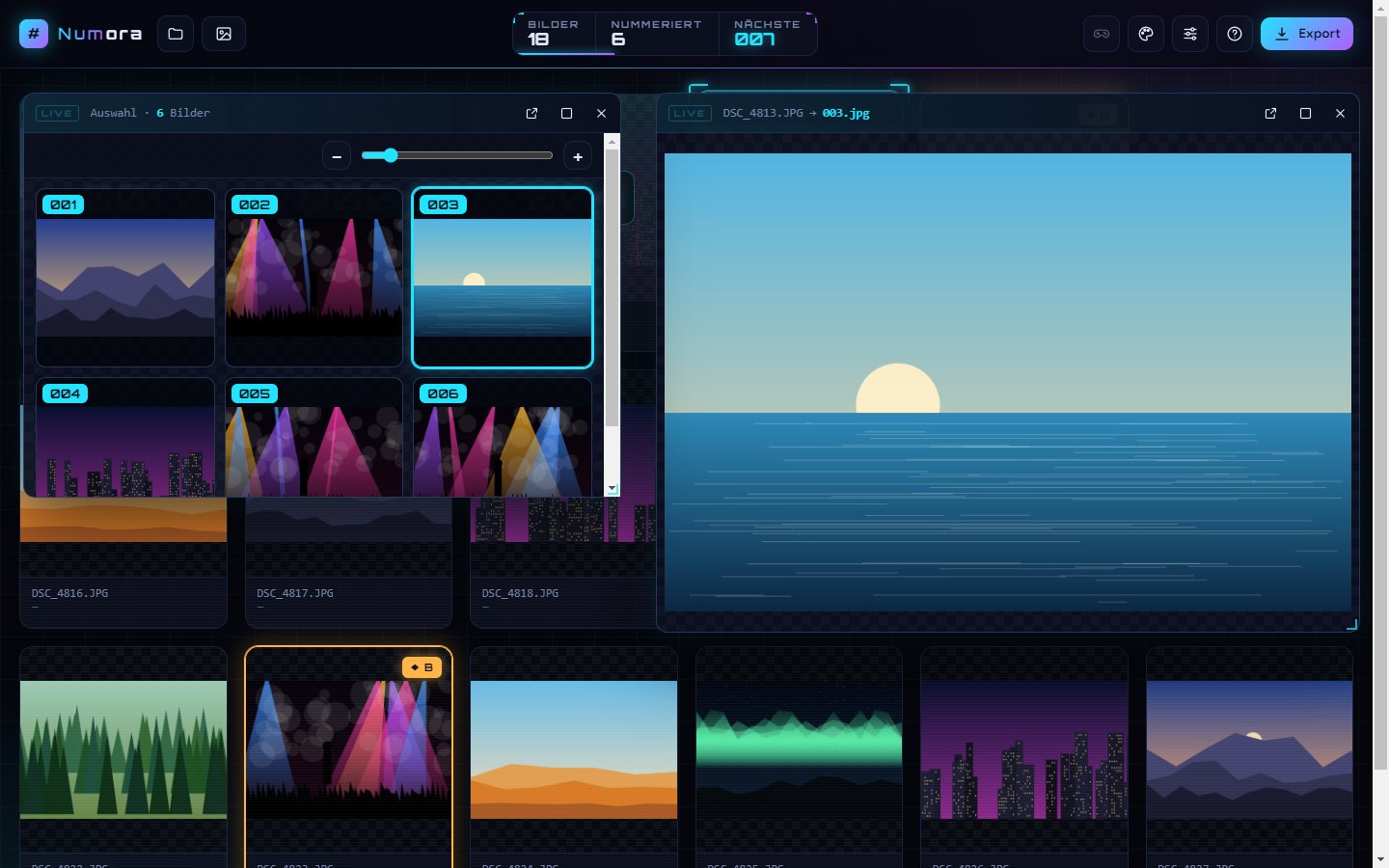
Space bar or double-click: a freely movable window, resizable from every edge and corner, maximisable – and it follows your selection live.
C
Windows
Selection window with K
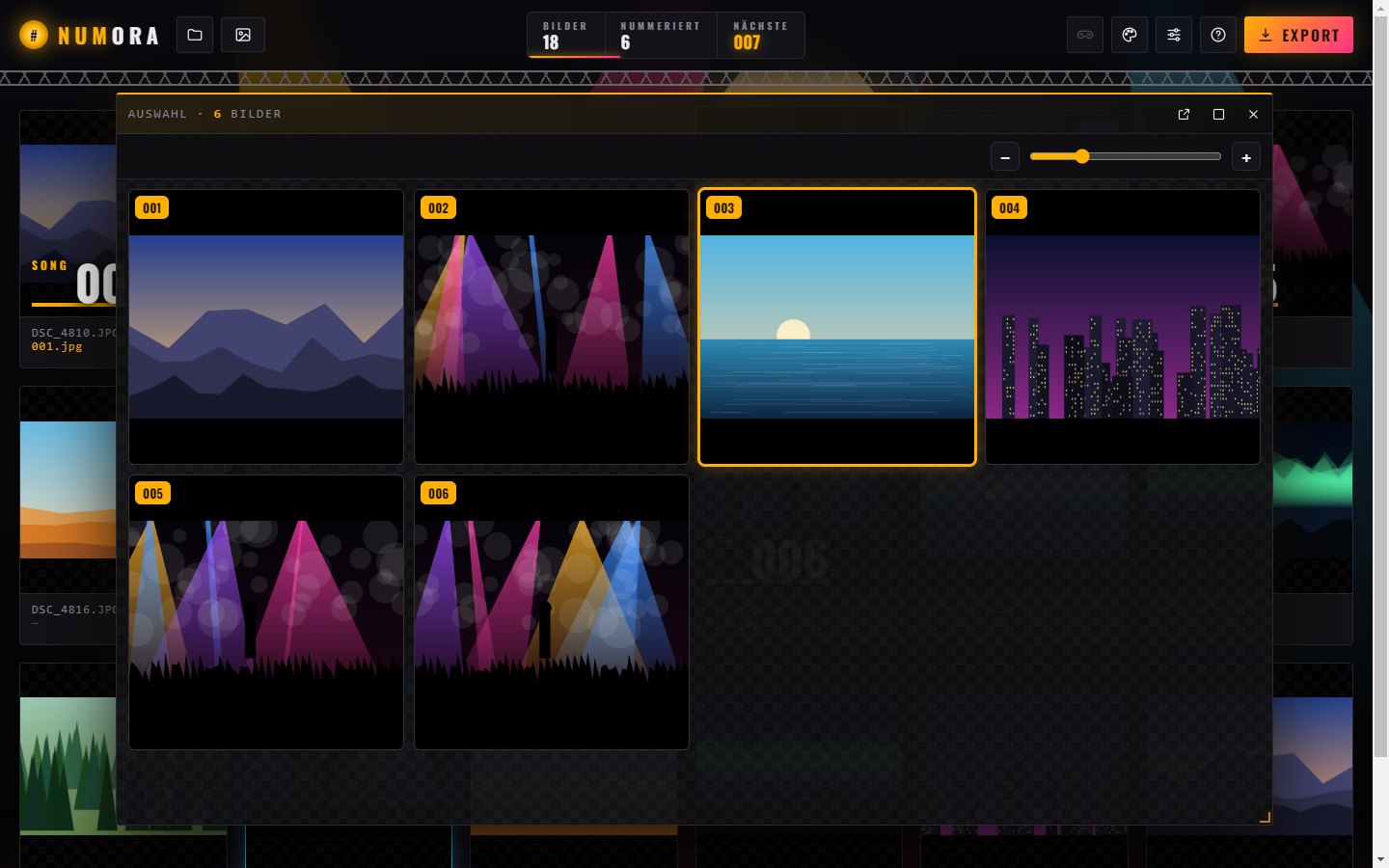
Shows only the numbered photos in their order – perfect control over the series. One click jumps to the photo; zoom with −/+, a slider or Ctrl + mouse wheel.
D
Options
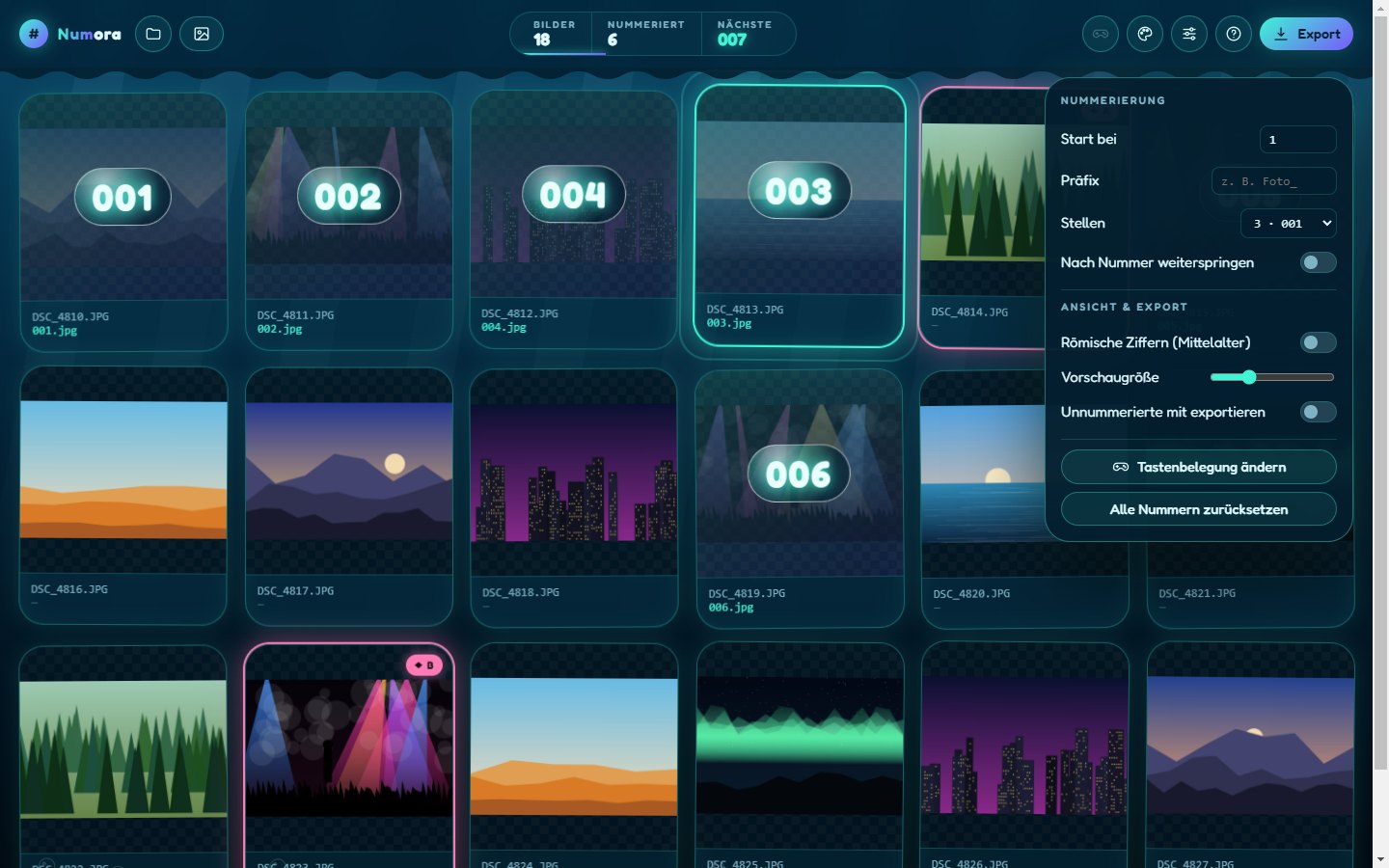
Start number, prefix, digits.
Start at any number, add a prefix like “Wedding_” and choose 1, 2, 3 or 4 digits – or let Numora decide automatically.
E
Automatic
Four digits from photo 1000.
With more than 999 photos, every file automatically gets four digits – so any software sorts your series correctly.
- 0001.jpg
- ⋮
- 0999.jpg
- 1000.jpg
- 1001.jpg
This also applies if you set the digits yourself: Numora always uses at least as many digits as needed.
F
Two monitors
Detach & move.
The large view and the selection window can be detached as separate windows – for example onto a second monitor.
G
Export
Folder or ZIP.
“Save to folder” creates copies in the subfolder “nummeriert”; alternatively “Download as ZIP”. Unnumbered photos can be exported too if you like.